
Why I Decided to Start a Blog
I already had my personal website up and running at reuben.findingcities.in. It covers who I am, what I do, and how to get in touch. But I wanted a dedicated space to write about digital marketing, automation, self-hosted tech, ERP implementations, and everything in between.
The question was: where do I host the blog?
Why I Chose reuben.findingcities.in/blog (Subfolder)
I considered a few options before making a decision:
- WordPress.com (free plan) — Quick to set up but you’re limited to a wordpress.com subdomain on the free tier. Custom domains require a paid plan. Limited control over design and no plugin access.
- A separate subdomain like blog.findingcities.in — This would work but Google treats subdomains as separate websites. Any SEO value the blog builds wouldn’t directly strengthen my main personal site.
- A subfolder: reuben.findingcities.in/blog — All blog content lives under the same domain as my personal site. Every post I publish builds authority for reuben.findingcities.in directly. This is the strongest SEO setup and keeps the brand unified.
The choice was clear: a subfolder install on my existing hosting. I wanted full control over the blog’s design and layout — custom themes, plugins, and the ability to build it independently from my main site — while still having it contribute to my domain’s overall authority.
How I Got It Done Through Hostinger
My website is hosted on Hostinger, which makes WordPress installations straightforward through their hPanel control panel. Here’s exactly what I did:
Step 1: Log Into hPanel
I logged into my Hostinger account and navigated to hPanel — their custom hosting management dashboard. From there I went to Hosting → Manage for my findingcities.in hosting plan.
Step 2: Use the WordPress Auto Installer
Rather than using the “Add Website” flow (which only accepts domains and subdomains, not subfolder paths), I used the WordPress Auto Installer:
- Navigated to Website → Auto Installer in hPanel
- Selected WordPress as the application
- Set the domain to reuben.findingcities.in
- In the installation path/directory field, I entered: /blog
- Filled in the site title, admin username, and password, then clicked Install
Hostinger took care of everything — creating the /blog directory inside my hosting folder, installing WordPress files, setting up the database, and configuring the connection automatically. The whole process took under two minutes.
Step 3: Accessing the WordPress Admin Panel
Once the installation was complete, accessing the admin panel is simple. The WordPress admin dashboard for a subfolder install follows this URL structure:
https://reuben.findingcities.in/blog/wp-admin
Simply navigate to that URL in your browser, enter the admin username and password set during installation, and you’re in. From here you have full control over themes, plugins, posts, pages, settings everything.
Step 4: Setting Up the Navigation Menu
To link the blog back to my main personal site, I added a “Home” link in the blog’s navigation menu pointing to reuben.findingcities.in:
- Went to Appearance → Menus in the WordPress dashboard
- Added a Custom Link item with the URL set to https://reuben.findingcities.in
- Labelled it “Home” and saved the menu
Adding Google Tag Manager for Tracking
With the blog live, the next priority was setting up proper tracking. I added Google Tag Manager (GTM) to the blog by inserting the GTM snippets in two places as required by Google:
- The GTM <head> snippet — placed as high as possible in the <head> section of the theme
- The GTM <body> snippet — placed immediately after the opening <body> tag
In WordPress, this was done by navigating to Appearance → Theme File Editor and editing the header.php file of the active theme. This ensures all future tracking — Google Analytics, conversion events, heatmaps, or any other tag — can be managed centrally from GTM without touching the theme code again.
GTM gives you the flexibility to fire any tracking script, marketing pixel, or custom event without needing a developer. For a content-focused blog, this is a non-negotiable setup from day one.
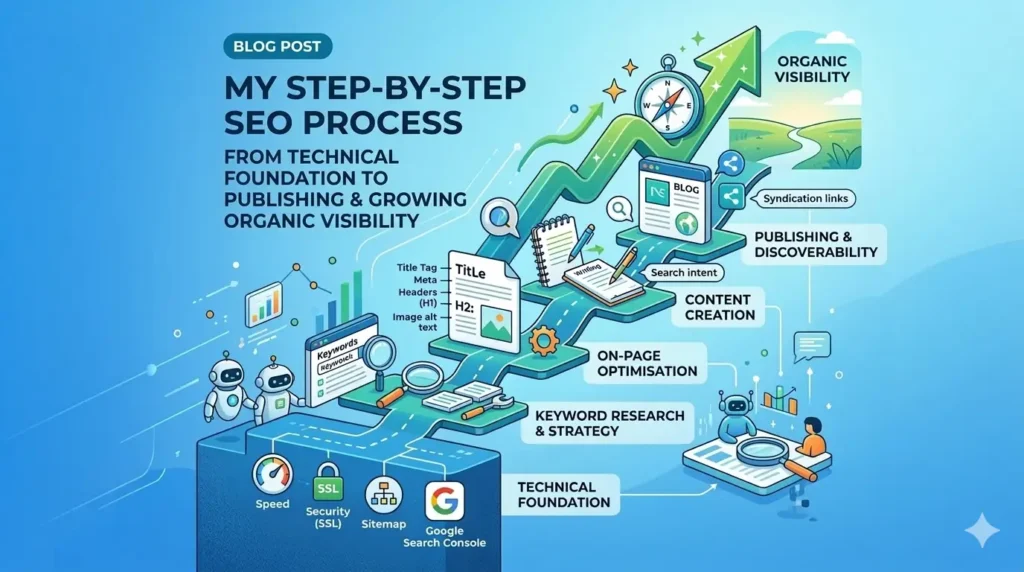
Submitting the Sitemap to Google Search Console
The final piece of the setup was making the blog discoverable to Google. WordPress automatically generates an XML sitemap (via Yoast SEO or the built-in WordPress sitemap functionality). The sitemap URL for a subfolder install follows this pattern:
https://reuben.findingcities.in/blog/sitemap.xml
I submitted this to Google Search Console by:
- Adding reuben.findingcities.in as a property in Google Search Console
- Verifying ownership via the DNS TXT record method through Hostinger’s DNS settings
- Navigating to Sitemaps in the GSC left sidebar
- Entering the sitemap URL and clicking Submit
Google will begin crawling and indexing blog posts as they are published. Search Console also provides invaluable data on which queries are driving impressions, click-through rates, and any crawl errors that need fixing — all essential for growing organic traffic over time.
Final Thoughts
Setting up a blog as a subfolder on an existing domain is one of those decisions that pays dividends long-term. Every post I write strengthens the same domain I’ve already been building. The Hostinger Auto Installer made the technical setup painless, and with GTM and Google Search Console in place from day one, the blog is built for growth from the ground up.
If you’re setting up a similar blog and have questions about the process, feel free to reach out via my main site at reuben.findingcities.in.